Cookies are files, generally from the visited webpages, which are
stored on a user's computer. They hold a small amount of data, specific
to a particular client and website, and can be accessed either by the
web server or the client computer which can be usernames, password,
session token, etc.
This allows the server to deliver a page personalized to a particular
user, or the page itself can contain some script which is aware of the
data in the cookie and so is able to carry information from one visit to
that website.
Types of Cookies
There are three different types of cookies −
- Session Cookies − These are mainly used by online shops
and allows you to keep items in your basket when shopping online. These
cookies expire after a specific time or when the browser is closed.
- Permanent Cookies − These remain in operation, even when
you have closed the browser. They remember your login details and
password so you don’t have to type them in every time you use the site.
It is recommended that you delete these type of cookies after a specific
time.
- Third-Party Cookies − These are installed by third parties for collecting certain information. For example: Google Maps.
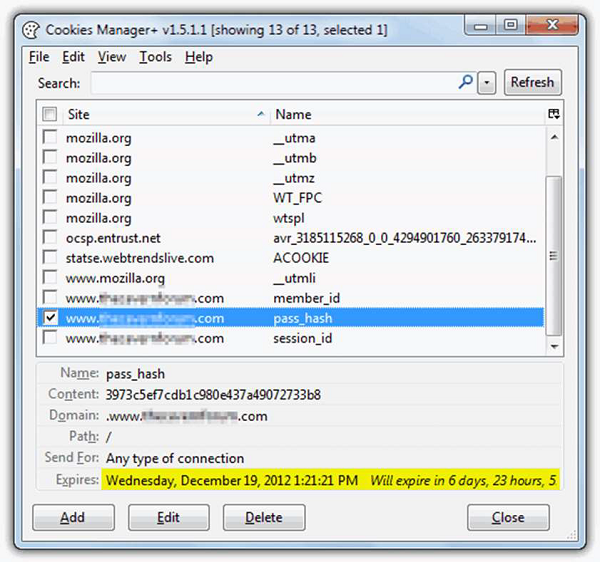
The following screenshot shows where the data of a cookie is stored
and to do this, I have used a plugin of Firefox which is called Cookies
Manager+. It shows the date when a cookie will expire.
How to Block Cookies and Delete Them?
For security reasons that you think are right, the cookies can be
disabled or deleted and it varies according to the Internet browsers.
Internet Explorer
You can use the following steps to clear cookies in the Internet Explorer.
- Step 1 − Press Start.
- Step 2 − Click Control Panel.
- Step 3 − Double click Internet options.
- Step 4 − Under the General Tab, you will see 'Delete temporary files, history, cookies, saved passwords...' Click Delete.
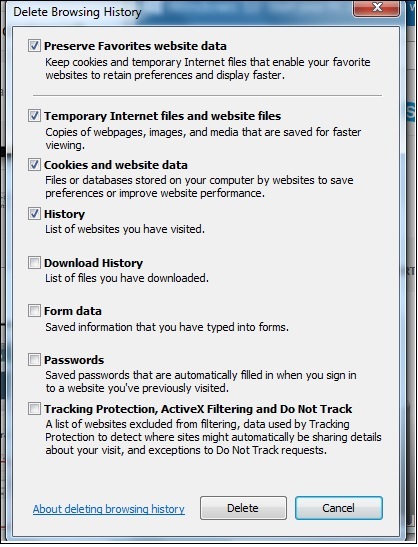
- Step 5 − The Delete Browsing History dialog box will appear, click the 'cookies' checkbox
- Step 6 − Click delete button at the bottom of the dialog box
- Step 7 − You will be taken back to the Internet properties dialog box. Click 'ok'.
Firefox
Keep in mind that the more popular a browser is, the higher the
chance that it is being targeted for spyware or malware infection.
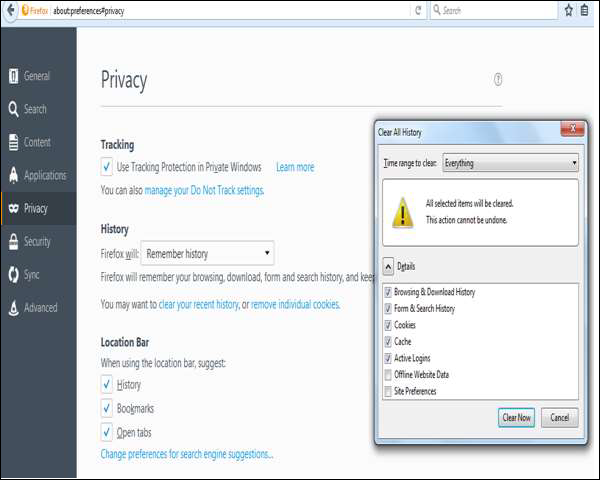
- Step 1 − Look at the top end of your Firefox window and you will see a 'Firefox' button. Click on it and click 'Options'.
- Step 2 − Click on 'Privacy'.
- Step 3 − You will see 'Firefox will:’ Set it to 'Use custom settings for history'.
- Step 4 − Click on the 'Show Cookies' button on the right side.
- Step 5 − If you want to delete cookies set by individual
sites, enter the complete domain or partial domain name of the site you
want to manage in the search field. Your search will retrieve the list
of cookies set for that site. Click 'Remove Cookie'.
- Step 6 − If you want to delete all cookies, click the top
of the Firefox window and click on the Firefox button. Click on the
History menu and pick out 'Clear Recent History...' Select 'Everything'
for the 'Time Range to Clear' option. The click on the downward arrow
located next to 'Details'. This will open up the list of items. Click
'Cookies' and make sure all the other items are unselected. Click on the
'Clear Now' button at the bottom. Close your 'Clear Recent History'
window.
Chrome
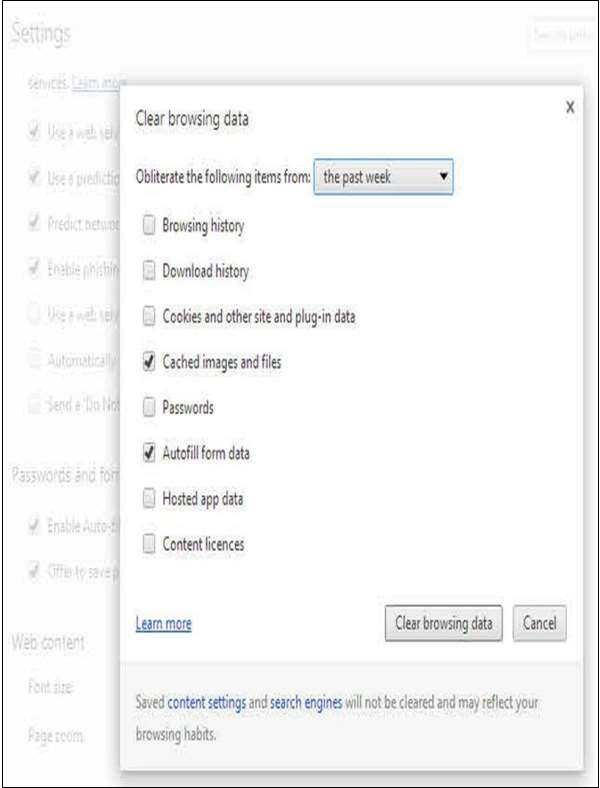
- Step 1 − At the top right hand side of your browser toolbar, click on the Chrome icon.
- Step 2 − Click on Settings.
- Step 3 − Scroll to the bottom and click 'Show advanced settings'.
- Step 4 − Under 'Privacy', you will see 'Content Settings', click on it.
- Step 5 − Under 'Cookies', you will see 'All cookies and
site data', click on this. Please
note that you can block cookies altogether from being set on your
browser by clicking 'Block sites from setting any data.' Unfortunately,
many websites you browse will stop working if you do this. It is better
if you just periodically clear your cookies manually instead of
preventing them from being set by your browser.
- Step 6 − You will see a full listing of all your cookies.
You can click REMOVE ALL to clear all your cookies or you can pick a
particular website and clear your cookies from that site.
Safari
This guide is for OSX Lion −
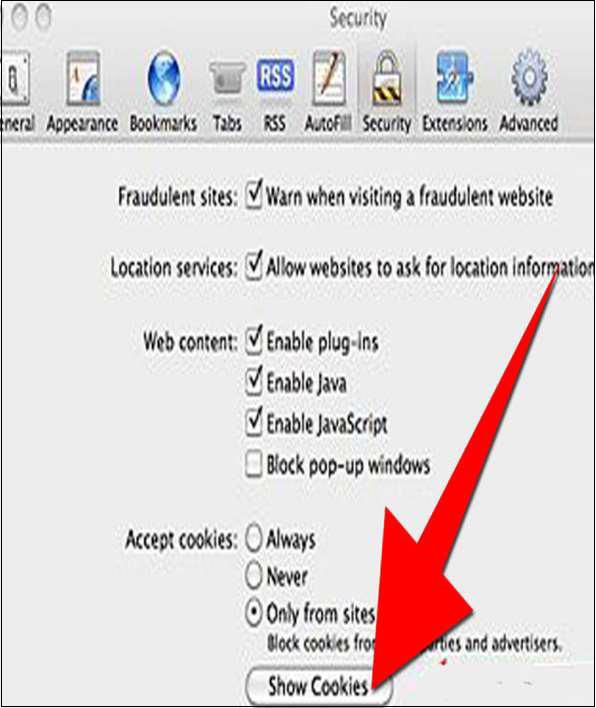
- Step 1 − Open Safari.
- Step 2 − Click Safari and then on Preferences. Click on 'Privacy’.
- Step 3 − Click on ‘Details’.
- Step 4 − You will see a list of websites that store
cookies. You can remove single sites by clicking the 'Remove' button and
selecting a site. If you want clear all cookies, click ‘Remove All’.
- Step 5 − When you have finished removing sites, click 'Done'.
Opera
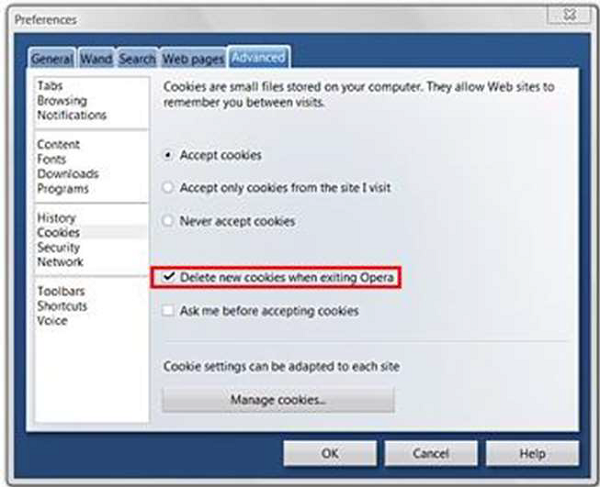
Step 1 − Click 'Settings' at the top of the Opera browser.
Step 2 − Click 'Preferences' and select 'Advanced'.
Step 3 − In the 'Advanced' screen, select 'Cookies'.
Step 4 − At this point, you can select one of three options −
- Accept all cookies (this is the default setting)
- Accept cookies only from sites you visit and
- Never accept cookies
If you block cookies, most of the sites you visit will stop working.
This is usually not a good choice. Your best default choice is to accept
cookies only from sites you visit. This blocks cookies set by
advertising networks and other third party sites. These third party
sites set cookies to track your movements across sites to enhance their
ad targeting capabilities.
Step 5 − Select 'Delete new cookies when exiting Opera'. If
you want to use a specific website but don't want to keep any cookies
for that site between your visits, select this option. It is not a good
idea to use this option for sites you visit frequently.


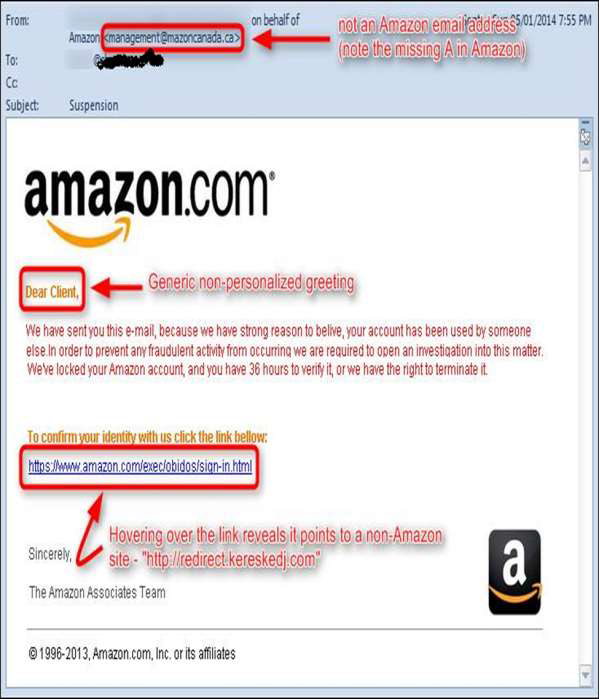 The links in the email may install malware on the user’s device or
direct them to a malicious website set up to trick them into divulging
personal and financial information, such as passwords, account IDs or
credit card details. These techniques are too much in use with
cybercriminals, as it is far easier to trick someone into clicking a
malicious link in the email than trying to break through a computer’s
defenses. Although some phishing emails are poorly written and clearly
fake.
The links in the email may install malware on the user’s device or
direct them to a malicious website set up to trick them into divulging
personal and financial information, such as passwords, account IDs or
credit card details. These techniques are too much in use with
cybercriminals, as it is far easier to trick someone into clicking a
malicious link in the email than trying to break through a computer’s
defenses. Although some phishing emails are poorly written and clearly
fake.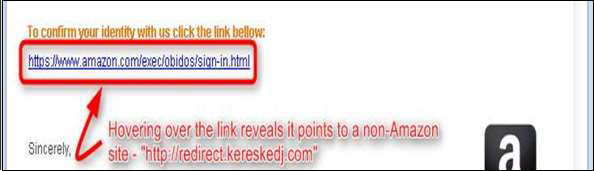 Links also may redirect you to .exe, or zipped files. These are known to spread malicious software.